| Home | Configs | Guides | About |
Table of Contents
Introduction
This document exists to introduce new users to linux and build linux skills from the ground up. It also acts as a good introduction to the deeper parts of your computer.
FOSS
Linux is FOSS software (Free and Open Source). FOSS does not just mean the code is readable by anyone. According to the Open Source Initiative, software must adhere to the following criteria to be considered:
Free Redistribution
The license shall not restrict any party from selling or giving away the software as a component of an aggregate software distribution containing programs from several different sources. The license shall not require a royalty or other fee for such sale.
Source Code
The program must include source code, and must allow distribution in source code as well as compiled form. Where some form of a product is not distributed with source code, there must be a well-publicized means of obtaining the source code for no more than a reasonable reproduction cost, preferably downloading via the Internet without charge. The source code must be the preferred form in which a programmer would modify the program. Deliberately obfuscated source code is not allowed. Intermediate forms such as the output of a preprocessor or translator are not allowed.
Derived Works
The license must allow modifications and derived works, and must allow them to be distributed under the same terms as the license of the original software.
Integrity of The Author's Source Code
The license may restrict source-code from being distributed in modified form only if the license allows the distribution of "patch files" with the source code for the purpose of modifying the program at build time. The license must explicitly permit distribution of software built from modified source code. The license may require derived works to carry a different name or version number from the original software.
No Discrimination Against Persons or Groups
The license must not discriminate against any person or group of persons.
No Discrimination Against Fields of Endeavor
The license must not restrict anyone from making use of the program in a specific field of endeavor. For example, it may not restrict the program from being used in a business, or from being used for genetic research.
Distribution of License
The rights attached to the program must apply to all to whom the program is redistributed without the need for execution of an additional license by those parties.
License Must Not Be Specific to a Product
The rights attached to the program must not depend on the program's being part of a particular software distribution. If the program is extracted from that distribution and used or distributed within the terms of the program's license, all parties to whom the program is redistributed should have the same rights as those that are granted in conjunction with the original software distribution.
License Must Not Restrict Other Software
The license must not place restrictions on other software that is distributed along with the licensed software. For example, the license must not insist that all other programs distributed on the same medium must be open-source software.
License Must Be Technology-Neutral
No provision of the license may be predicated on any individual technology or style of interface.
History
- 1970 - Two AT&T workers released Unix
- 1977 - UC Berkely released BSD (Unix clone), which had Unix code it in, violating copyright. They were later sued for this in the 90's
- 1983 - Richard stallman created the GNU Foundation with the goal of creating a free Unix-Like operating system. He also wrote the GNU Public License (GPL). This operating system (called HURD) remained incomplete
- 1985 - The Minix operating system (A Unix-like OS) was created by Andrew Tanenbaum for academic purposes along with his book Operating Systems: Design and Implementation. The code was available but modification and redistribution was restricted.
Linux was created by Linus Torvalds in 1991, while he was studying Computer Science at the University of Helsinki (Finland). He wrote Linux as "just a hobby" with the intentions of it being free to use.
When it was first released, it was released with commercial restrictions. It was later licensed under the GPL.
Linus wrote this announcement in a Usenet posting to the newsgroup "comp.os.minix.":
"Hello everybody out there using minix -
I'm doing a (free) operating system (just a hobby, won't be big and professional like gnu) for 386(486) AT clones. This has been brewing since april, and is starting to get ready. I'd like any feedback on things people like/dislike in minix, as my OS resembles it somewhat (same physical layout of the file-system (due to practical reasons) among other things).
I've currently ported bash(1.08) and gcc(1.40), and things seem to work. This implies that I'll get something practical within a few months, and I'd like to know what features most people would want. Any suggestions are welcome, but I won't promise I'll implement them :-)
Linus (torvalds@kruuna.helsinki.fi)
PS. Yes - it's free of any minix code, and it has a multi-threaded fs. It is NOT portable (uses 386 task switching etc), and it probably never will support anything other than AT-harddisks, as that's all I have :-(."
— Linus Torvalds
Linux is not an Operating System
Linux is not a full operating system. Linux is simply a kernel that can be used as a backbone for a full operating system. There are a lot of moving parts that make up an operating system and the kernel is just the heart of it.
Customization & User Choice
Linux is 100% customizable, and not just by developers. You can frankenstein together all the different pieces of a full operating system to complete your version of linux (as we will in this workshop).
Privacy & Freedom
Linux is well known for being the only way to properly remain privacy while connected to the internet. If you run Mac, Windows or Chrome OS, you are almost guaranteed to be giving away your information to large companies.
Simplicity
Simplicity is defined by the Arch team as "without unnecessary additions or modifications". This does not mean the system is simple to handle or maintain. Rather, it is fully customizable by you and doesn't contain unnecessary bloat.
The Command Line
One reason why Linux is preferred for servers is due to the fact that you can administer a Linux machine 100% from the command line. Depending on your workflow, you may be able to work and almost never take your hands off the keyboard. This provides a much faster workflow, but requires more knowledge of your system
Terms and Concepts
This section describes the various terms and concepts that are covered in the following sections.
Software vs Hardware
Software is the code ran by your machine. This consists of programs, services, background processes, the operating system, the BIOS, etc. Anything that is ran by your CPU is software.
Hardware is the physical components that make up your computer and run the software.
Hardware Components
Motherboard
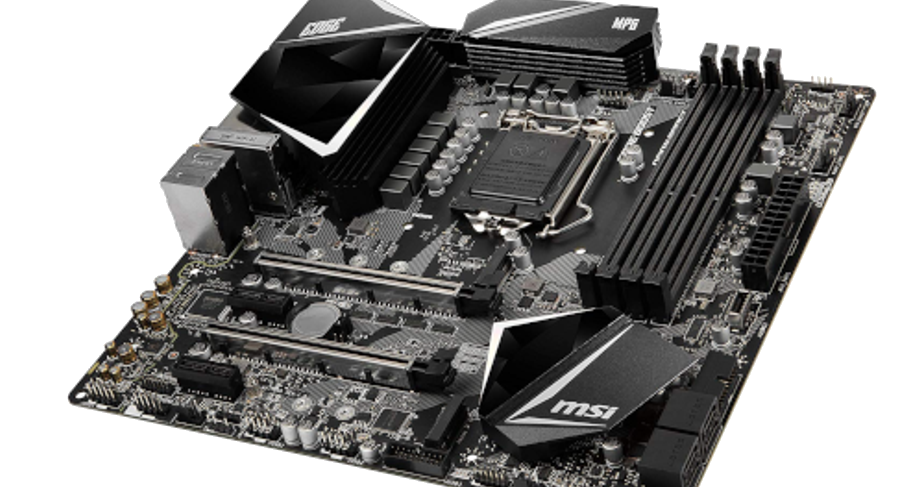
The "spine" of a computer. This acts as the channel by which the various components of the system communicate. All of the PC components plug into the motherboard.
The motherboard also houses the "BIOS", which we will talk about in a future section.
CPU
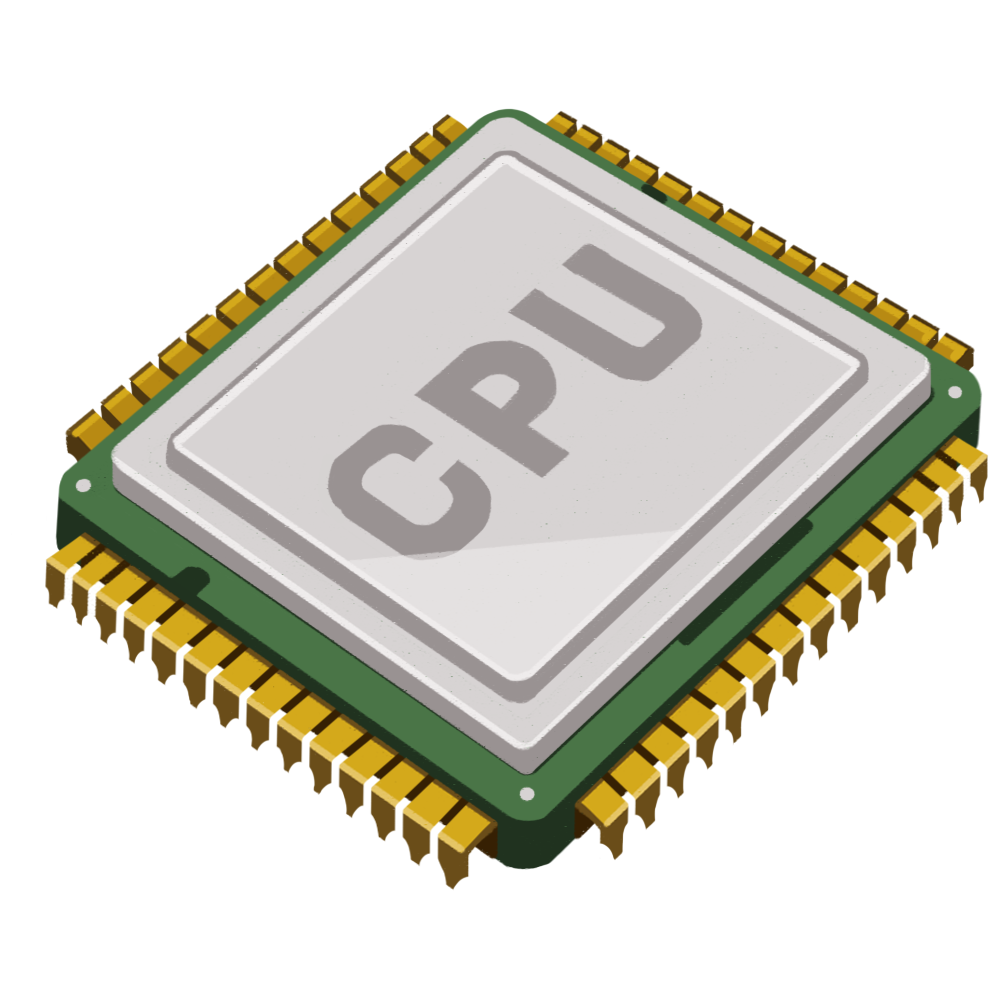
The CPU is the "brain" of the system. It is what tells the other components what to do. It runs binary code that is stored in memory.
Memory
Memory (Also called RAM - Random Access Memory) is the "Short term memory" of the system. When the CPU is currently working on something, it will be stored in memory. Memory is extremely fast storage used to house data and code for the CPU to access and execute. However, memory requires constant power to hold data. For this reason, data stored in memory does not persist beyond a reboot.

Storage
The "long term memory" of the system. Data in storage is written to a more long-term form of storage. Many different kinds of storage exists, but the two main forms are HDD's (Hard Drive Disks) and SSD's (Sold State Drives). The very basic and oversimplified differece between the two is speed and cost. HDD's are slower but cheaper, while SSD's are faster, yet more expensive.

Graphics
Graphical processing is done by the GPU (Graphical Processing Unit). A GPU is much like a CPU, but it is designed specifically for rendering images on a screen. Your monitors will plug into the graphics card and it will handle drawing the images on the screen.
Software Components
BIOS
When you first turn on your PC, the processor (CPU) has to be given something to do. If that doesn't happen, the system will do nothing. Here we have a chicken and egg problem. We can't load our operating system, because it's on the hard drive. The only way to access the hard drive is for the CPU to request information from it, but the CPU needs the information (code) on the hard drive to know what to do. This is where the BIOS comes in. The BIOS is a set of instructions that are loaded onto the CPU when it first boots. These instructions (The BIOS) are stored on a small storage device on the motherboard.
Usually this is a very small, basic program used to configure very low level parts of the system. This program is also responsible for loading your operating system code into the CPU, so it know what to do. From there, the the OS takes over.
Newer versions of BIOS are called UEFI (Unified Extensible Firmware Interface). We won't dig any deeper into that, except to just say that UEFI is newer, and thus preferred. Some older mother boards do not support UEFI while newer ones do.
In our case, our virtualization platform is going to handle this layer for us, so we won't actually be interacting with the BIOS menu like you would on a physical machine. But the concepts are all still the same.
Kernel
The kernel is the heart of the operating system. Some may even argue that it is the whole operating system, and everything else is just extra software. Regardless, the kernel is master that controls what happens in the operating system. The kernel does many things:
- Handles processes and scheduling
- Handles the I/O system (i.e. software communicating with hardware)
- Networking
- Storage
- Memory
- etc.
Boot Process
The handoff between the BIOS and the kernel is the boot process. Typically, in older BIOS systems, this had to be handled by something called a "boot loader". So the BIOS would load the boot loader program and the boot loader program would load the kernel. With newer versions of BIOS, this is no longer required. However, a boot loader is often still used for various reasons that we won't be going into now.
Proprietary operating systems have their own boot loaders. The Windows boot loader, for instance. For Linux, we do have a few we can choose from, but most systems just use GRUB. We will see more about GRUB later during the install process.
Drivers
As we talked about earlier, there are many components that make up your motherboard. All of these components need to be told what to do and they need a translator, so that the various models of each type of component can all be talked to in the same way. Think of a standard language, English for example, and we all talked to other countries via a translator. These translators are called "drivers". The vendor of a particular product has to make a driver so that their software can be talked to by the operating system in the operating system's own language.
CLI vs GUI
There are two different ways your PC can be interacted with. One is via a CLI (or Command Line Interface) and the other is GUI (Graphical User Interface). We are used to operating systems that have GUI's but not all of them do. As a matter of fact, most linux servers (i.e. not workstations that users work on) are CLI only and are managed 100% via a CLI.
We are all familiar with GUI's, but some are not familiar with CLI's. Most GUI operating systems (if not all) have a CLI that can be pulled up as a window. This is typically called a "terminal emulator" (more on that later). A CLI is an interface managed 100% vai text. You don't use your mouse, only the keyboard, and everything action is a command (word/phrase typed into the CLI) with some other parameters given to it.
File System
Hard drives (and other storage devices) are nothing more than gian blobs of data smashed together. If you could somehow see the 1's and 0's written to a disc, and you could even read binary as a computer does, you still would have no idea what you were looking at, because there are so many pieces of information shoved together and even dispersed across the disk in fragments.
A file system is the organizational system behind your hard drive. This is how the data is organized and kept track of on the system. There are many different file systems that exist. For Windows, it's NTFS, for linux, ext4. Most flash drives are fat32. You may have noticed these if you have evered formated a flash drive. Usually, your system will ask you what file system you want to format it to.
- File vs Directory
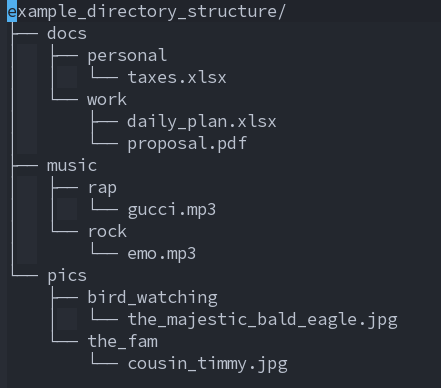
Regardless of the file system, they are all, for the most part, a tree-like structure of directories (folders) and files. Below is an example directory structure that we will be using in a future section.
Directories are often called "folders". These are simply containers for us to organize our files. Directories can house files or other directories.
- File Extensions
File extensions are parts suffixes appended to files with a dot, that signify the format (or type) of the file. For example, a plain text document might have a file extension of '.txt'. A Microsoft Word document might have .docx and Excel .xlsx, etc.
Some operating systems (though, not all) use these extensions to determine what program to to open the file with for viewing/editing when the file is clicked on in a graphical environment. Of course, in a CLI environment, where we specify the program we wish to use, these only serve an organizational purpose.
- File Paths
When we want to reference a file, we have to tell the program that we are using where to find it and what its name is. This addressing scheme is known as a file "path", as it is the "path" that you must follow to get to the file you want. Like any addressing system, there has to be a "root" or starting point. Much like how the US is the "root" of our addressing scheme. 1234 main st, NYC, NY provides us a path we must follow. First we have to get to New York, then within NY, we have to get to New York City. Then within NYC, we have to find main street, and then we have to find the building numbered 1234.
The format of a file path depends on the operating system that you are using. For Windows, our "root" directory is "C:". Every step in the path is separated by a "\". For example:
C:\Users\username\Documents\importantdocument.docx
In Mac and Linux, the "root" directory is simply "/". A path in linux might look like this:
/home/username/Documents/importantdocument.docx
One important distinction: In Linux, names are case-sensitive. In Windows, they are not.
- Absolute vs Relative
Absolute paths are those that start at the root directory, while relative paths are those that start from an implied location. We will touch more on this in the "Working directory" section.
Windows Examples: Absolute: C:\Users\username\Documents\importantdocument.docx Relative: Documents\importantdocument.docx (in this case, C:\Users\username is the implied reference point)
Linux Examples: Absolute: /home/username/Documents/importantdocument.docx Relative: Documents/importantdocument.docx (in this case, /home/username is the implied reference point)
- Absolute vs Relative
- Hidden Files
Most file systems have a concept of hidden files. Or at least the operating system does. This varies depending on the system. Either way, there are ways to specify certain files should be hidden from the user under normal circumstances. These files are typically configuration files that, when edited or messed with, could harm the system or program if done incorrectly. Typical tools that allow you to see the contents of a directory will simply ignore hidden files unless told otherwise.
In Windows, there is a flag within the file system that is stored, specifying whether the file is hidden or not.
In Mac and Linux, a hidden file is simply one that is prepended with a dot (.bashrc for example).
- Soft Links
Soft links (aka shortcuts, symbolic links or symlinks) are simply files on the system that point to other files on the system. There are many use cases for symlinks and we will see these use cases in future lessons.
- Working Directory
The concept of a working directory is not one that you might be familiar with if you have never used a command line. This is the directory (i.e. path to the directory) that you are "in" so to speak. Whenever you are working in a command line, you will always "be" somewhereo on the file system. Otherwise, we would have to access every file via its absolute path.
When we talked about relative paths, we talked about referencing files from an implied starting point. This is typically that implied starting point.
Linux Specific Concepts
Shell
- Purpose of the Shell
To provide a means to control your operating system (pre-GUI). The shell is simply a way to execute programs on your system.
- Different Shells
- The Bourne Shell - Created by Stephen Bourne at AT&T Bell Labs for Unix v7. Most modern shells have derived from this shell. As well, this shell exists on most (if not all) linux systems under the binary "sh"
- BASH (Bourne Again Shell) - Open Source GNU project intented to replace the Bourne Shell. This shell is the default shell on most (if not all) linux distributions.
- Anatomy of a Shell Command
A shell command consists of a few different components:
- Command: The program being ran
- Arguments: Parameters given to a program to control how it functions
Flags: Similar to arguments, flags generally are used to either A) specfiy what argument you are about to give or B) tell the program to do/not do something, depending on if you gave the flag or not. A flag is a letter, word, or phrase starting with a dash (-).
The anatomy of a shell command is as follows:
<Command> <Arguments/Flags>
For example, the ls command:
ls -l /home
In this case, the command (or program) is "ls" (a tool used to list the contents of a directory) and we give it the "-l" flag, telling it to print each item on a different line and give us details about it. The last part is an "Argument" telling ls to list the directory contents of "/home".
- Environment and variables
Environment variables are variables that provide various purposes on the operating system. Think of environment variables as the "System Settings". This is where you tell the system things like your default text editor and your screen scaling factor, for example.
Distribution
Since Linux is FOSS, anyone can use it as the kernel to their full operating system, and many have. These operating systems are called Linux Distributions (or "distros" for short).
Package Manager
Every linux distribution has a "package manager". This is a program on the system that is used to install software from the distribution's software repositories.
Rolling Release vs Standard (or Fixed) Release
A distribution can be one of two different types in regards to system and application updates.
- Rolling Release: A release that gives the user software at its latest version and the OS is not given a version, like other operating systems such as: "Windows 10 vs Windows 11" or "Ubuntu 18.04 vs. Ubuntu 20.04". When you run the command to update the system (via the package manager), the system will always be on the latest version and you will never have to rebuild your system, so long as you keep it up to date.
- Standrd (or Fixed) Release: A release that is done in versions. Software available on the distribution's repositories are not released until they have been tested with that version of the OS. As well, when the distribution makes major changes, they are pushed out into a new version, often requiring you to rebuild your system. Older version are typically unsupported (i.e. do not recieve updates - even for security).
Configuration Files
Unlike Windows, the various portions of the Linux operating system are controlled via files. Configuration for every program has to be stored in a file and these files are how you change and customize your system.
Directory Structure
The structure of directories in Linux is standardized through the "Filesystem Hierarchy Standard" or FHS. This is a set of standards that explains where certain files should be placed on the system. Typically, this standard really exists for program writers to know where their installation scripts should put files. However, this also means you should not place files on your system where they do not belong, either.
The FHS is as follows:
- /bin
This is where binary files used by both the system admin and by users, but which are required when no other filesystems are mounted (e.g. in single user mode), should exist.
- /boot
Files pertaining to the boot loader.
- /dev
Special or device files
- /etc
System and service configuration files (i.e. configuration files that are not on a user-level).
- /home
User folders directory (equivelant of C:\users in Windows)
- /lib
Shared library files. These are groups of shared code used by various programs on the system.
- /media
Mount point for removable media, such as flash drives.
- /mnt
Mount point for external file systems
- /opt
Install directory for add-on application software packages
- /root
Home directory for the root user
- /sbin
Binaries that would not be used by the average user. Their purpose is for system administration and other various root-only commands.
- /srv
Used to serve files via some application on the system. For example, a web server, which will serve HTML and other various web-based files.
- /tmp
Temporary files. Typically these are auto-deleted by the system after some time.
- /usr
User programs, libraries and other data are stored here. Unlike /sbin or /bin, these are programs that would typically be used by the average user.
- /var
Variable data files. Things that will change constantly on the system, such as log files.
- /proc
Kernel process information. Various information about processes running on the system lives here
Linux Command Line
Download this project on Gitlab
sudo apt update && sudo apt upgrade
sudo apt install git
git clone https://gitlab.com/t9741/arch-linux-guide.git
cp -r arch-linux-guide/ /mnt/c/Users/{your windows username}/Downloads/
cd arch-linux-guide/
Example directory structure:
example_directory_structure/
├── docs
│   ├── personal
│   │   └── taxes.xlsx
│   └── work
│       ├── daily_plan.xlsx
│       └── proposal.pdf
├── music
│   ├── rap
│   │   └── gucci.mp3
│   └── rock
│       └── emo.mp3
└── pics
    ├── bird_watching
    │   └── the_majestic_bald_eagle.jpg
    └── the_fam
        └── cousin_timmy.jpg

9 directories, 7 files
Man Pages
Man pages are documents that explain how to use a command
man ls
tldr
If the man pages are too much information for you, there is a python utility called "tldr".
sudo apt install tldr
tldr ls
Working Directory
Determining Current Working Directory - pwd
pwd
Change Working Directory - cd
cd example_directory_structure/
pwd
The Clear Command
The clear command will clear the contents of the terminal.
clear
The Echo Command
The echo command will print text to your console screen.
echo 'Hello, World!'
Working with files
cat
The cat command will output the contents of a file to the console window.
cat somefile.txt
less
less some_larg_file.txt
touch
The touch command will create an empty file.
touch somefile.txt
mkdir
The mkdir command will create a directory. A common flag to this command is the '-p' flag, which tells mkdir to not error if the directory already exists. As well, if a subdirectory (ex. 'sub' in the path /sub/folder) doesn't exist, it will create it. This make the '-p' flag very useful when trying to create many nested directories with a single command
mkdir some_directory
mkdir -p /path/to/directory/that/doesnt/exist/yet
rm
The rm command will remove a file.
rm somefile.txt
A common combination is the '-r' and 'f' flags. '-r' means "recurse", which will allows rm to be used on directories. The '-f' flag means to force the action. Typically this is used against write-protected files to stop rm from promptign you for each file.
NOTE: DO NOT use "rm -rf" unless you are 100% aware of what you are doing. This can be used to completely destroy your system.
rm -rf /some_directory
cp
The cp command will copy a file from one location to another.
cp somefile.txt /some_directory
A common flag for cp is the '-r' flag. This acts the same as with the rm command, allowing cp to copy directories.
mv
The mv command will move a file or directory from one location to another.
mv somefile.txt /some_directory
The mv command is also the command used to rename a file
mv somefile.txt some_renamed_file.txt
Unlike rm and cp, mv can be used on directories with no flags.
Text Editors
- Vim vs Nano
It may not seem so at first, but it is possible (and very efficient) to edit files interactively via the command line (such as with notepad). These types of programs are called TUI's or (terminal user interfaces).
The two most popular terminal-based text editors are vim and nano.
Vim is a very powerful, yet complicated, text editor. It is very feature rich, but does have a slight learning curve.
Nano is known for its simplicity. It is what you would expect from a text editor and does not have nearly the features of vim. However, it does just what it sets out to do: edit files.
While you can edit files in vim much faster than in nano, it is typically recommended for new command line users to use nano.
grep
Grep is one of the most powerfull commands you can learn as a Linux user. Given a file, it will filter its contents given a keyword. For example, if I wanted to search the '/etc/passwd' file, which the file containing a list of users on the system, for any user configured to run the bash shell by default, I could run the following command:
grep '/bin/bash' /etc/passwd
Now let's say I wanted this list, but I wanted to leave out the root user. For this, we can use the 'v' flag, which tells grep to leave out any content that matches the pattern:
grep -v 'root' /etc/passwd
Concepts
Redirecting command output
You can send the output of a command to a file with '>'. The below command will overwrite the contents of "output.txt" with "hello". If output.txt does not exist, this command will create it.
echo 'hello' > output.txt
Sometimes you may not want to overwrite the contents of a file. In this case, we will use '>>', which will append the output to a file rather than overwriting it.
echo 'goodbye' >> output.txt
Piping commands
You can send the output of commands to another command as well. This functionality makes the command line very powerful. Let's take our last example. We wanted to get all the users that use the bash shell as their default shell. After that we got all the users except root.
What if we wanted to do both? All users who use the bash shell AND are not root.
grep '/bin/bash' /etc/passwd | grep -v 'root'
The operator between the two grep commands is called the 'pipe' operator. This will send the output of one command into the other, assuming that command is written to take it.
In this case we got all users in the passwd file that use the bash shell and piped the output of that command to grep and used the -v argument to filter out any line that contained the word 'root'
